


Hardware FAQ
Q: Can you provide the main technical specifications for the PioNext Ultra?
A: Hello, below are the detailed technical specifications for the PioNext Ultra.
| Printing Size | 211.68mm×118.37mm×100mm |
| Machine Size | 468mm×286mm×470mm |
| Package Size | 600mm×370mm×585mm |
| N.W. | 19.78kg |
| G.W. | 23.67kg |
| Printing Technology | LCD |
| Light Source Wavelength | 385nm、405nm |
| Resolution | 16K (15120*6230px) |
| Pixel Size | 14*19μm |
| Layer Thickness | 0.01-0.1mm |
| Printing Speed | Max.60mm/h (0.1mm) |
| Touch Screen | 5-inch Capacitive Color Touch Screen |
| Slicing Software | PioNext BOX / CHITUBOX Dental |
| Data Transmission | USB/WIFI |
| Input Voltage | 100-240V~,50/60Hz |
| Power | 660W |
| Supported Consumables |
Removable Die Model Resin / Ortho Model Resin / Ortho Model 2.0 Reesin / Dental Casting Resin / Surgical Guide Resin/ Surgical Guide Pro Resin / Temporary Restoration Resin / Denture Base ResiCrown & Bridge Resin |
Q: What are the dimensions of the PioNext Ultra release film?
A: The dedicated release film dimensions are 274.5mm × 195.5mm × 0.15mm.
Q: Which resins are supported by the PioNext Ultra?
A:
-
It supports resins with wavelengths of 385nm and 405nm, including ceramic crown resin, temporary resin, guide resin, model resin, and all other PioNext brand resins.
-
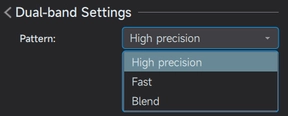
Please select the correct light source type according to the compatibility of the resin being used:
-
If printing with the 385nm band, select "High Precision Mode" in the dual-band settings.
-
If printing with the 405nm band, select "Fast Mode" in the dual-band settings.
-
Q: What is the maximum amount of resin that can be added to the resin vat?
A: It is recommended not to exceed 500ml (i.e., not exceeding the "Max" line).
Q: What is the lifespan of the LCD screen? Is it replaceable?
A: LCD screen lifespan: approx. 2,000 hours. Replace the LCD screen if it exceeds its lifespan or is damaged.
Q: How do I clean the build platform?
A: It is recommended to spray and clean with 95% industrial alcohol, use a metal scraper to remove cured residue, then wipe dry with a lint-free cloth and blow dry with an air gun.
Q: How should I handle hardware issues with the device (e.g., LCD not displaying)?
A: Please contact customer service and provide the device's SN code, firmware version, and printing parameters. The after-sales team will arrange for inspection, repair, or part replacement.
Software FAQ
Q: What slicing software should be used for the PioNext Ultra?
A: Please use Piocreat Box (version v4.6.1.4133 or higher), PioNext Box, or Chitu Dental for slicing. Chitubox is currently not supported.
The minimum system requirements for Piocreat Box are as follows:
-
Operating System Requirements: 64-bit Windows 7 or later, with Mac OS also supported; 32-bit operating systems are not supported.
Q: How do I adjust printing parameters (exposure time, layer height, etc.)?
A: Different resins require different parameters. Please refer to the following link: resin-parameters
Q: Can Piocreat Box or PioNext Box set different parameter configurations for different resin materials?
A: Yes. In the parameter page of the slicing software, you can create and save independent configurations such as exposure time and lift speed for each resin, making it easy to recall them as needed.
Q: If the model is relatively large and heavy, can small supports be used?
A: Not recommended. For large or heavy models, medium or large supports must be used to ensure reliability. Additionally, it is strongly recommended to hollow the model and properly design drain holes to reduce pull forces and save resin.
Q: After slicing, does the exported STL file contain resin printing parameters and support parameters?
A: No. The STL file exported from the slicing software contains only geometric model data. All resin printing parameters and support structure information are saved in the .cxdlpv4 format file generated by the slicer. Furthermore, when exporting an STL, the original supports become fused into the model and cannot be edited further.
Q: What should I do if importing a sliced model from a USB drive fails?
A:
-
Check the USB drive: Format the USB drive to FAT32 (with default allocation unit size). It is recommended to use a reliable USB drive of moderate capacity (e.g., 16G).
-
Check the slicing process: Confirm that the correct printer model was selected during slicing and that the slicing process was not interrupted. Try re-slicing or test with another USB drive.
-
Save the sliced file: First save the sliced file locally on your computer, then copy it to the USB drive. If the USB drive or computer USB port has poor contact, file corruption may occur during saving.
Printing FAQ
Q: Can the device name be changed?
A: Currently, changing the device name is not supported. It is recommended to distinguish devices by their IP addresses.
Q: What should I do if the computer cannot find the printer during WLAN printing?
A:
-
Check network and software: Ensure that both the printer and computer are connected to the same Wi-Fi network (either 2.4GHz or 5GHz band). Update the slicing software on your computer to the latest version.
-
Check printer network connection: On the printer's touchscreen information interface, check if an IP address has been successfully obtained.
-
Check computer firewall (Windows): In your computer's firewall settings, ensure that domain network access for the slicing software is allowed.
-
Network troubleshooting: Try connecting the printer and computer via a mobile hotspot to check if they can communicate properly.
Q: How do I heat the resin? Does the device support temperature control?
A: The PioNext Ultra comes with a built-in chamber heating system. You can adjust the temperature on the device interface. It is recommended to preheat the resin when the room temperature is below 20°C.
Q: What should I do if the printed model has defects or holes?
A: Possible causes include:
-
Insufficient exposure time (recommend gradually increasing exposure time for testing).
-
Supports are too thin or insufficient (recommend using medium/large supports).
-
There is cured residue in the resin vat (recommend cleaning the resin vat and trying again).
Q: How can I easily remove supports after printing?
A: It is recommended to soak the printed part in alcohol for 2 minutes before removing supports, or simply use flush cutters to cut them off.
Q: The print results are not satisfactory. How can I improve them?
A: You need to adjust the support placement of the model in the slicing software; otherwise, some supports may fall off during printing. The printing speed should not be set too fast. Additionally, the resin used, slicing parameters, model orientation, and support conditions can also affect the print quality.